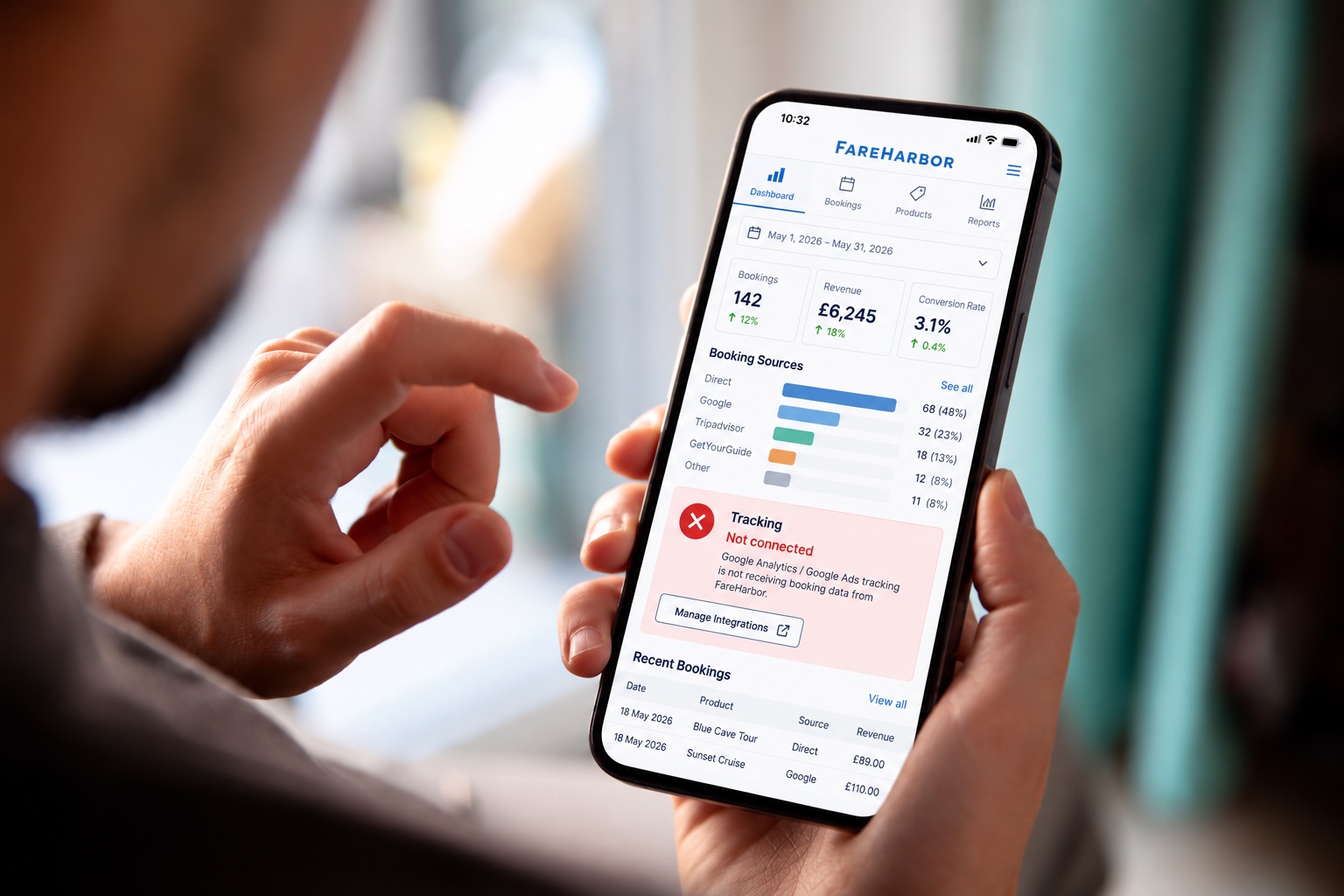
You spend money advertising your tours. People visit your website, make enquiries and book experiences. But when you look at Google Ads, the number of bookings doesn't seem to add up.
Sound familiar?
If you use FareHarbor to take bookings, the problem could be your tracking. You might be receiving bookings that your advertising reports aren't correctly recording or attributing to the campaigns that generated them.
This doesn't necessarily mean your adverts aren't working. It means you need to check whether your tracking is capturing the full picture.
The good news is that FareHarbor supports a direct integration with Google Analytics 4 (GA4), which can send booking information, including revenue, into your analytics reports.
Here's how it works, how to set it up and how to check it's doing its job.
Why can FareHarbor bookings go missing from your reports?
The problem often starts when a customer clicks your booking button.
Many FareHarbor websites use something called a Lightframe. This opens the booking process in a window that sits on top of your website, allowing customers to choose a date, select an activity and complete their payment without leaving the page they're viewing.
Although it looks like part of your website, the booking process runs through FareHarbor.
This creates a problem for ordinary website tracking. Tracking code installed on your website doesn't automatically see everything happening inside the booking window.
If your setup doesn't account for this, a customer could click a Google advert, complete a booking and appear in your booking system without the booking being correctly recorded in your analytics.
You get the booking. Your reports may not give the right campaign credit for it.
FareHarbor has a built-in integration designed to help solve this problem. Rather than trying to track every step of the booking window yourself, you can connect FareHarbor directly to Google Analytics.
Read FareHarbor's official explanation of its analytics integrations.
How FareHarbor tracking works
There are three parts to understand.
A customer visits your website
They might arrive through Google Ads, Facebook, an organic Google search or another source. They browse your tours and click the booking button.
The customer books through FareHarbor
The Lightframe opens and the customer selects their experience, chooses a date and completes the booking. Your normal website tracking may not see these steps without the right integration.
The booking information reaches Google Analytics
With the FareHarbor integration configured correctly, GA4 can receive purchase information and revenue. You can then import the purchase event into Google Ads so it can help measure and optimise your advertising.
This is why adding another tracking tag to your website isn't necessarily the answer. You first need to make sure the booking itself is being recorded properly.
How to set up FareHarbor conversion tracking
For most operators starting from scratch, the recommended approach is to connect FareHarbor directly to GA4 and then import the purchase event into Google Ads.
You don't need to build a complicated Google Tag Manager setup just to track basic purchases.
Step 1Connect FareHarbor to Google Analytics
Google Analytics 4 (GA4) is Google's free analytics tool. It helps you understand where visitors come from, what they do on your website and which bookings are recorded.
If you already have GA4 installed, you'll need your Measurement ID. This is a code beginning with G- that identifies your analytics property.
If you don't have GA4 set up yet, you'll need to create a property and configure tracking for your website first.
Once you have your Measurement ID:
- Sign in to your FareHarbor Dashboard.
- Go to Settings → Analytics & Tracking.
- Select Add analytics service.
- Enter the details FareHarbor asks for to identify your company account. If you're unsure what to enter, check with FareHarbor Support.
- Enter your GA4 Measurement ID.
- Save the integration.
Follow FareHarbor's official GA4 setup guide for the current instructions.
Step 2Make sure GA4 doesn't lose track of visitors during booking
This is an important step that's easy to overlook.
When a customer moves between your website and a booking process hosted by FareHarbor, Google Analytics can sometimes treat the transition as a referral from another website.
That can make it look as though FareHarbor itself sent you the customer, rather than the original Google advert or other source.
To prevent this, FareHarbor instructs you to add your website and fareharbor.com to GA4's unwanted referrals list.
In Google Analytics:
- Open Admin.
- Go to Data streams and select your website's web data stream.
- Open Configure tag settings.
- Find List unwanted referrals. You may need to select Show all first.
- Add a rule for
fareharbor.com. - Add another rule for your own website domain, without
www. - Save your changes.
For example, if your website is example.com, the two domains would be fareharbor.com and example.com.
The purpose is to prevent these domains from being treated as new referral sources during the booking journey.
This setting is not a replacement for the FareHarbor integration, and it doesn't recover every lost attribution. It's one part of getting your tracking configured correctly.
Step 3Check that bookings are reaching Google Analytics
Before connecting anything to Google Ads, check that the integration is working.
Complete a genuine test booking using your normal website booking button, following FareHarbor's guidance on testing and any applicable refund procedures.
Then open Google Analytics and check your reports for a purchase event. This is the event that records a completed purchase.
Check that:
- The purchase event appears.
- The booking revenue is recorded correctly.
- The booking isn't being counted more than once.
If you can't find the event, don't assume the integration is working just because you entered the Measurement ID. Check the setup and contact FareHarbor Support if necessary.
Step 4Connect Google Analytics to Google Ads
Once bookings are appearing in GA4, connect your Google Analytics property to Google Ads. This allows Google Ads to use the booking information collected by GA4.
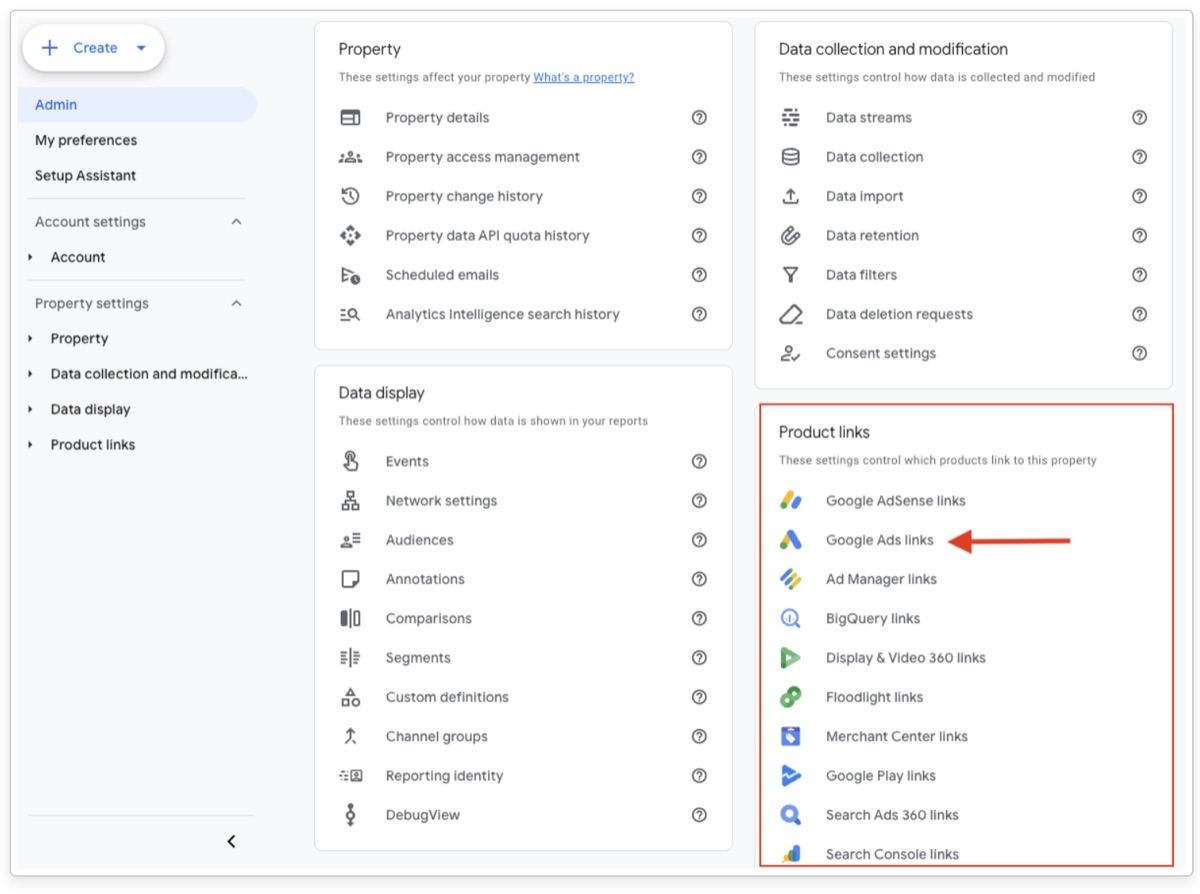
In Google Analytics:
- Open Admin.
- Select Product links → Google Ads links.
- Choose the Google Ads account you use for your campaigns.
- Follow the instructions to complete the link.
- Make sure auto-tagging is enabled for the Google Ads account, as outlined in FareHarbor's guide.
Official instructions for linking GA4 and Google Ads.
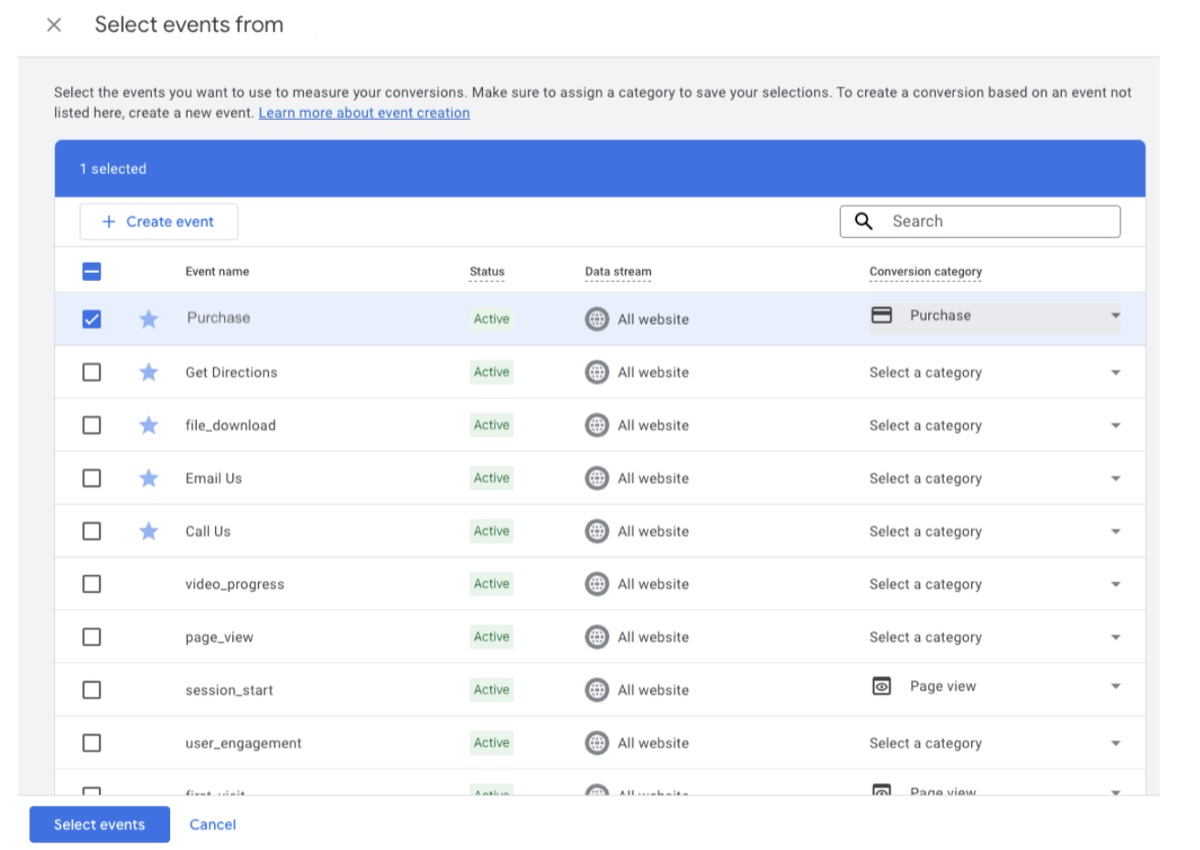
Step 5Import your bookings into Google Ads
Now you need to tell Google Ads to use the booking information collected by GA4.
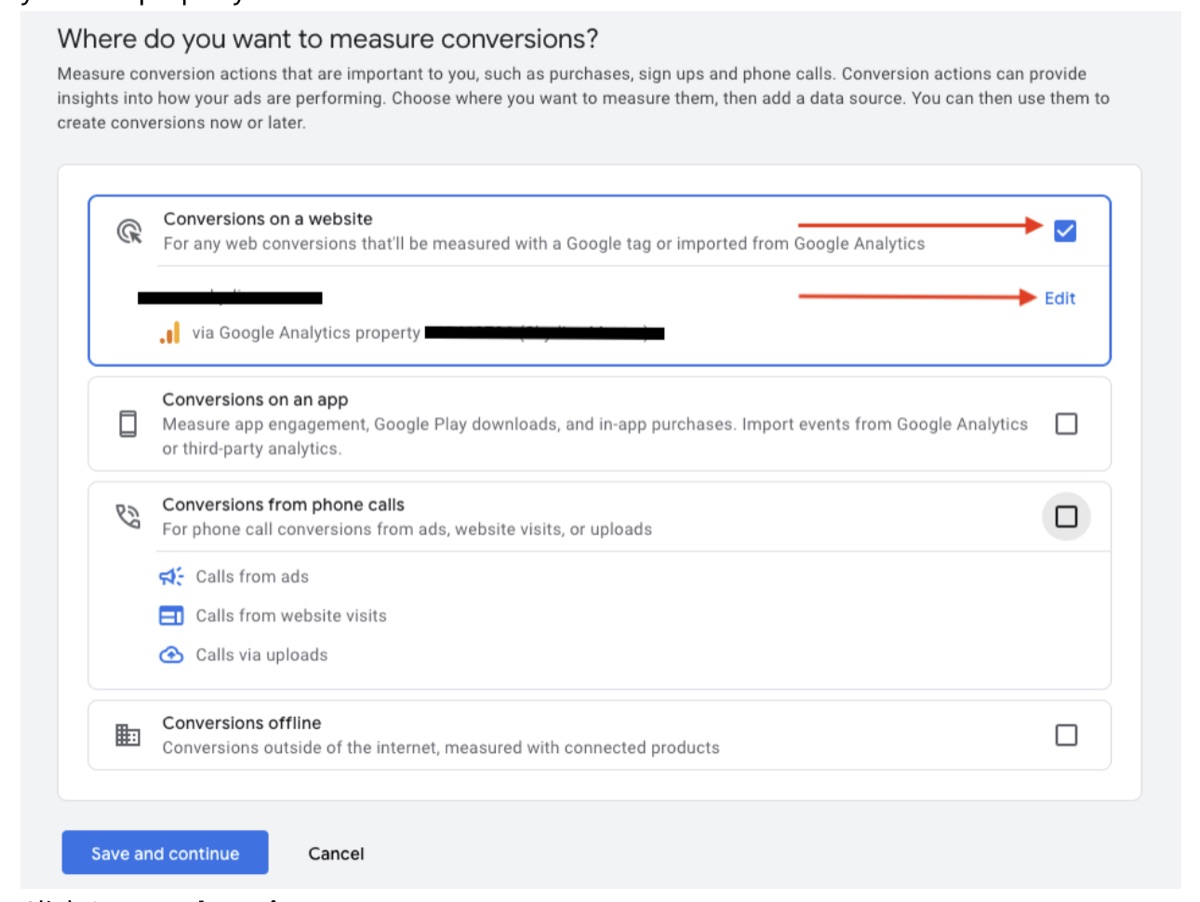
In Google Ads:
- Open Goals → Conversions.
- Choose the option to create a conversion action.
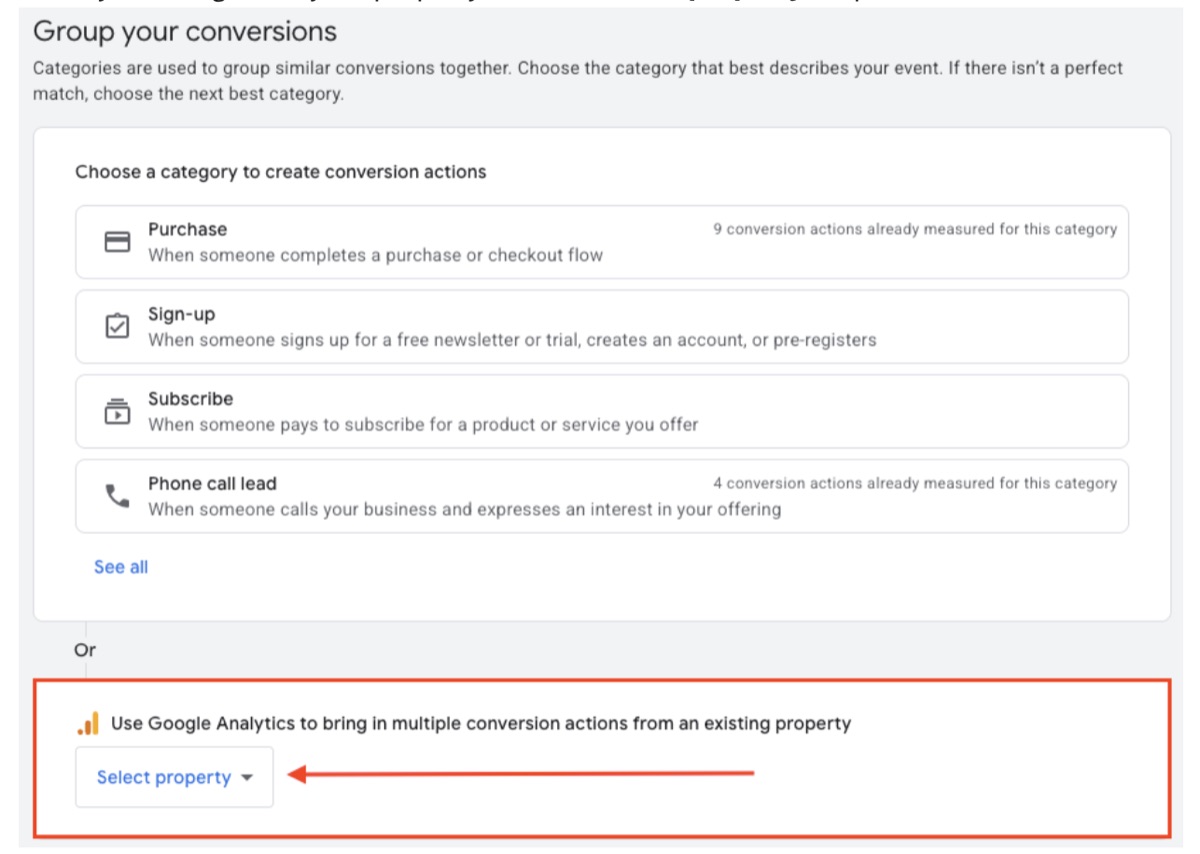
- Select the option for conversions on a website and continue to the Google Analytics import option.
- Select your linked GA4 property.
- Choose the
purchaseevent and set the conversion category to Purchase. - Finish the setup.
The exact wording may vary as Google updates its interface.
Step 6Tell Google Ads to optimise for completed bookings
Importing the purchase event is not the final step. You also need to check how Google Ads uses it.
A conversion action marked Primary can be used for campaign bidding and is generally included in the main Conversions column. A Secondary action is normally used for observation rather than bidding.
If you want Google Ads to optimise towards completed bookings, check that the purchase conversion is set as Primary and included in the goals used by the relevant campaigns.
Also check whether you already have a separate Google Ads purchase tag installed through Google Tag Manager or another method. You don't want two conversion actions recording the same booking.
Keep one reliable purchase-tracking method for each booking.
You can still use Google Tag Manager for other website tracking; the important thing is to avoid duplicate purchase conversions.
FareHarbor recommends importing the GA4 purchase event into Google Ads rather than setting up a separate purchase tag for the same transaction.
Why don't my booking numbers match across platforms?
Even after setting everything up correctly, Google Ads, Google Analytics and FareHarbor may report different numbers. That doesn't automatically mean your tracking is broken.
FareHarbor records bookings made through its booking system. Google Analytics records the events it receives. Google Ads reports the conversions it can attribute to your advertising under its reporting and attribution settings.
For example, someone might click your Google advert on Monday but book on Thursday. Google Ads can attribute the booking to Monday's advert click, while GA4 generally records the purchase on Thursday.
Google and Meta may also both claim credit for the same booking if the customer interacted with adverts on both platforms.
Here's how to investigate the most common problems.
| What you're seeing | What to check |
|---|---|
| No bookings in Google Ads | Check the FareHarbor-to-GA4 integration, then check whether the purchase event is imported into Google Ads. |
| Bookings appear but revenue is missing | Check whether the purchase event includes the correct booking value and currency. |
| Bookings appear under referral or direct traffic | Check the unwanted referral settings and whether the booking integration is working correctly. |
| More conversions than actual bookings | Check for duplicate purchase tracking or multiple conversion actions recording the same sale. |
| Deposits and final payments both count as purchases | Check whether both payments are generating purchase events for the same booking. |
| Google Ads and GA4 show different totals | Compare the same dates, check the reporting settings and investigate any remaining unexplained difference. |
What should you do if the numbers still don't match?
Work through these checks in order.
- Compare the same dates. Make sure you're comparing the same period in each platform. Remember that Google Ads reports can use different date bases, including the date of the advert interaction and the date of the conversion.
- Check your actual bookings. Use FareHarbor to establish how many bookings were completed and the revenue recorded for the period. Be aware that cancellations, refunds, taxes and add-ons can affect comparisons between reports.
- Check Google Analytics. Confirm that completed bookings appear as purchase events and that the revenue values are correct.
- Check Google Ads. Confirm that the purchase conversion is imported, active and included in the goals used by your campaigns.
- Investigate any unexplained gap. If bookings are missing, counted twice or attributed to the wrong source, investigate before relying on those figures to make decisions about your advertising budget.
The aim isn't to make every platform show exactly the same number. It's to understand why the numbers differ and make sure your tracking is reliable enough to guide your decisions.
When is the basic FareHarbor setup not enough?
FareHarbor's GA4 integration is a good starting point, but some operators have more complicated booking journeys.
You take enquiries before confirming a booking
Private charters, multi-day itineraries, group trips and bespoke experiences often involve an enquiry before a customer pays.
Someone might click a Google advert, complete an enquiry form and then speak to your team before confirming a booking weeks later.
If Google Ads only records the initial enquiry, it may learn to generate more enquiries without knowing which ones become paying customers.
In this situation, you may need offline conversion tracking. This means sending the eventual sale or booking information back to Google Ads so it can learn which enquiries lead to revenue.
Your bookings have very different values
Imagine you sell a £40 walking tour and a £4,000 private itinerary.
If Google Ads treats both as equally valuable conversions, it doesn't get the full picture of which sales contribute most to your business.
Sending the correct booking value to your analytics and advertising platforms gives you a more useful way to measure performance and can support value-based bidding.
Customers take a long time to book
A traveller might click an advert, compare several operators, discuss the trip with their family and book weeks later.
Browser privacy settings, consent choices and customers switching devices can make it harder to connect that final booking to the original advert.
Server-side tracking can help address some measurement gaps, but it isn't a guaranteed solution for every missing conversion. It needs to be configured correctly and used alongside appropriate consent and privacy controls.
If your booking process is complex, learn more about server-side tracking for tour operators.
If you'd like help checking or improving your setup, explore our booking tracking service.
How do I know if my FareHarbor tracking is working?
Don't assume your tracking works just because someone installed it. The best way to check is to follow a booking from start to finish.
Use this checklist:
- Complete a genuine test booking using your normal website booking button.
- Confirm that the purchase event appears in Google Analytics.
- Check that the booking revenue is recorded correctly.
- Check that
fareharbor.comand your website are configured in the unwanted referral list. - Confirm that the purchase conversion appears in Google Ads.
- Check that the conversion is set as Primary if you want campaigns to optimise towards bookings.
- Check that the same booking isn't being counted twice.
- Compare the results with FareHarbor's booking records and investigate any unexplained differences.
If one of these checks fails, you have a starting point for finding the problem.
If they all pass, your setup is in a much stronger position. However, privacy-related measurement gaps and differences in attribution can still occur.
For a more detailed review, read our guide to checking whether your tracking is losing bookings.
You can also learn why bookings are sometimes credited to the wrong source in our guide to tour operator booking attribution issues.
Frequently asked questions
Can I add a Google Ads tracking tag to the FareHarbor confirmation page?
With a Lightframe booking, the confirmation process runs within FareHarbor rather than on a normal page you control on your own website.
You therefore can't normally install your own tracking tag directly on that confirmation page. FareHarbor's GA4 integration is the recommended starting point for capturing completed purchases.
Do I need Google Tag Manager?
Not for the basic FareHarbor purchase-tracking setup.
FareHarbor can send booking information directly to GA4. You can then import the purchase event into Google Ads.
Google Tag Manager remains useful for other tracking needs, such as enquiry forms, consent management and more advanced measurement. But simply adding GTM won't automatically solve a problem inside the FareHarbor booking process.
Should I install tracking through both FareHarbor and Google Tag Manager?
You can use both tools for different purposes, but you need to avoid recording the same purchase twice.
For example, you might use GTM to track website activity and FareHarbor's integration to record completed purchases. That's different from having both methods create a separate purchase conversion for the same booking.
For basic FareHarbor purchases, follow the native GA4 integration and import the verified purchase event into Google Ads.
Why does FareHarbor show more bookings than Google Ads?
FareHarbor records bookings made through its platform. Google Ads only reports the conversions it can attribute to advertising under its measurement and reporting settings.
Some customers may have found you through organic search, direct visits, referrals or other channels. Others may be difficult to attribute because of privacy settings, long booking journeys or switching devices.
Start by checking that your purchases and revenue are being recorded correctly. Then investigate which bookings Google Ads can and cannot attribute to your campaigns.
The aim isn't to force the totals to match. It's to understand the difference.
Will this track someone who clicks an advert on their phone and books on a computer?
Not always.
Google may be able to connect the two interactions in some circumstances, but switching devices makes attribution harder. The GA4 integration helps capture bookings, but it can't guarantee that every booking will be matched to the original advert.
Does the same approach work with Bókun, Peek Pro or Rezdy?
The principle is the same: you need to record completed bookings and pass that information into your analytics and advertising reports.
However, each booking platform has its own integrations and limitations. The exact setup for FareHarbor won't necessarily work with Bókun, Peek Pro or Rezdy.
Always check the documentation for your specific booking platform before implementing a tracking solution.
Not sure your booking tracking is telling the truth?
We’ll compare what FareHarbor confirmed against what your ad accounts reported, and show you the size of the gap. No pitch, no obligation.
Request a tracking audit →